



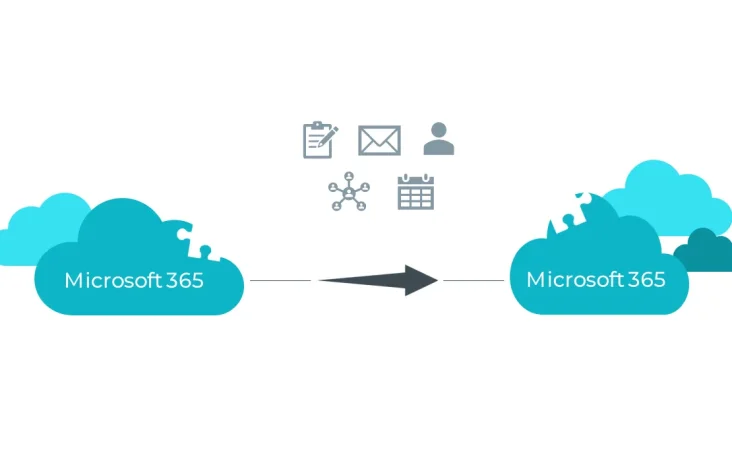
Step-by-Step Guide for Tenant-to-Tenant PowerApps Environment Migration
Migrating a PowerApps environment from one tenant to another can seem daunting, but with the right steps, it’s a straightforward process. This guide will walk you through the entire migration process, from authentication to final execution. Let’s get started!
Prerequisites
Before you begin, ensure you have the following:
- PowerShell with PowerApps Module: Install the PowerApps PowerShell module.
- Administrative Access: You need admin permissions for both the source and target tenants (at least power platform admin access)
- User Mapping File: Prepare a
usermapping.csvfile to map users from the source tenant to the target tenant.
Step 1: Authenticate to the Source Account
- Open PowerShell and authenticate to the source account using the following command:
Add-PowerAppsAccount- Enter the credentials for your source account when prompted.
Step 2: Submit Migration Request from Source Account
- Submit a migration request from the source tenant to the target tenant:
- Replace
<SourceEnvironmentID>and<TargetTenantID>with the appropriate values.
- Replace
- View the migration request to retrieve the Migration ID:
TenantToTenant-ViewMigrationRequest
- Save the Migration ID for later steps.
Step 3: Authenticate to the Target Account
- Authenticate to the target account using the following command:
Add-PowerAppsAccount- Enter the credentials for your target account when prompted.
Step 4: Approve Migration Request from Target Account
- View the approval request to retrieve the Source Migration ID:
TenantToTenant-ViewApprovalRequest
- Save the Source Migration ID.
- Approve the migration request using the Migration ID:
TenantToTenant-ManageMigrationRequest -MigrationId <MigrationID>- Replace
<MigrationID>with the ID from the previous step. - When prompted, select
1to approve.
- Replace
Step 5: Generate Blob Storage for User Mapping File
- Authenticate to the source account again:
Add-PowerAppsAccount - Generate a blob storage URL for the user mapping file:
GenerateResourceStorage-PowerAppEnvironment -EnvironmentName <SourceEnvironmentID>- Replace
<SourceEnvironmentID>with the appropriate value. - Save the generated Blob Storage URL.
- Replace
- Upload the
usermapping.csvfile to the generated blob storage:$SASUri = "<BlobStorageURL>" $Uri = [System.Uri] $SASUri $storageAccountName = $uri.DnsSafeHost.Split(".")[0] $container = $uri.LocalPath.Substring(1) $sasToken = $uri.Query $fileToUpload = 'C:\usermapping.csv' $storageContext = New-AzStorageContext -StorageAccountName $storageAccountName -SasToken $sasToken Set-AzStorageBlobContent -File $fileToUpload -Container $container -Context $storageContext -Force
- Replace
<BlobStorageURL>with the URL generated in the previous step.
- Replace
Step 6: Prepare Migration
- Prepare the migration using the Source Migration ID and Blob Storage URL:
TenantToTenant-PrepareMigration
-MigrationId <SourceMigrationID>
-TargetTenantId <TargetTenantID>
-ReadOnlyUserMappingFileContainerUri <BlobStorageURL>
- Replace
<SourceMigrationID>,<TargetTenantID>, and<BlobStorageURL>with the appropriate values.
- Replace
Step 7: Execute Migration
- Execute the migration using the Migration ID and Target Tenant ID:
TenantToTenant-MigratePowerAppEnvironment
-MigrationId <MigrationID>
-TargetTenantId <TargetTenantID>
- Replace
<MigrationID>and<TargetTenantID>with the appropriate values.
- Replace
Important Notes
- Ensure the
usermapping.csvfile is correctly formatted with comma-separated values. - Double-check all IDs and URLs before executing commands.
- If you encounter errors, review the error messages and validate the input parameters.
Conclusion
By following these steps, you can successfully migrate a PowerApps environment from one tenant to another. If you have any questions or run into issues, feel free to reach out to our support team for assistance.
Happy migrating!